
Are you ready to boost your productivity and make your daily tasks easier? Learning how to use Copilot AI can transform the way you work, helping you write documents, analyze data, and manage emails faster than ever before.
This smart assistant works alongside you, understanding your needs and offering helpful suggestions in real time. You’ll discover simple, step-by-step tips to get started with Copilot AI right away. By the end, you’ll feel confident using this powerful tool to save time and get more done.
Keep reading to unlock the full potential of Copilot AI and take your productivity to the next level!

Getting Started With Copilot Ai
Getting started with Copilot AI is simple and straightforward. This tool helps you work faster and smarter. It fits well with many tasks, from writing to data analysis. The first steps are important to make the most of Copilot AI.
Below, you will find easy instructions to set up your account, understand the interface, and explore key features. Follow these steps to begin your journey with Copilot AI.
Setting Up Your Account
Visit the official Copilot AI website to create your account. Enter your email and choose a strong password. Verify your email by clicking the link sent to you. Log in to access the full features of Copilot AI. Some plans may require payment, but a free version is also available. Keep your login details safe for future use.
Navigating The Interface
The Copilot AI interface is clean and user-friendly. On the left, find the menu with main options. The center shows the workspace where you interact with the AI. Use the top bar to search or access settings. Buttons are clearly marked for easy use. Spend a few minutes clicking around to feel comfortable.
Exploring Key Features
Copilot AI offers many helpful tools. You can generate text, summarize information, and create ideas quickly. It integrates with apps like Word and Excel for smooth workflows. Use the chat feature to ask questions or get suggestions. Try the editing tools to improve your writing instantly. Each feature helps save time and effort.
Integrating Copilot With Microsoft Tools
Integrating Copilot with Microsoft tools enhances your daily work. It fits smoothly into popular apps like Word, PowerPoint, Outlook, and Teams. This integration helps you save time and increase productivity. Copilot assists by offering smart suggestions and automating tasks. Learning to use Copilot within these tools makes your work easier and faster.
Using Copilot In Word
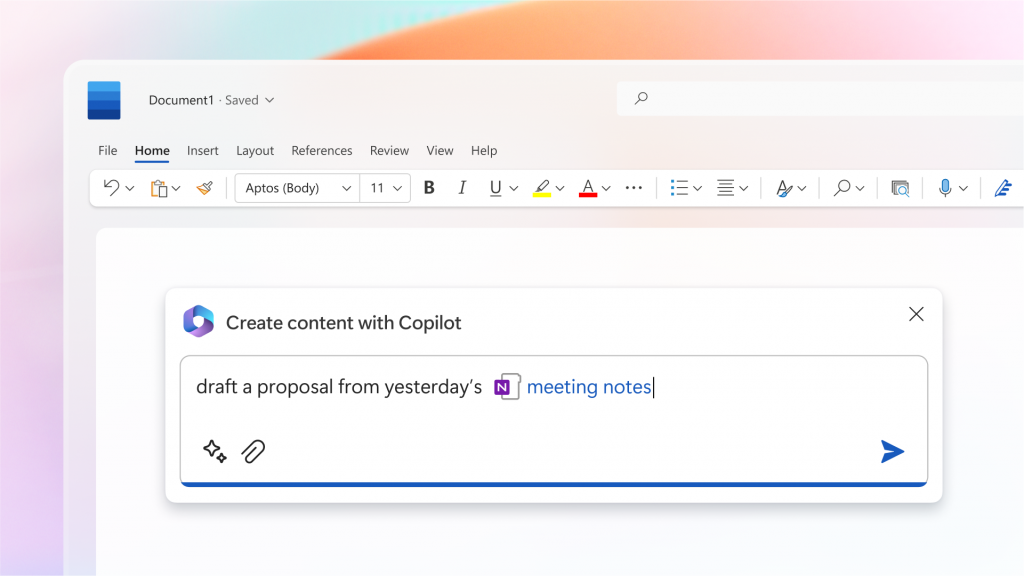
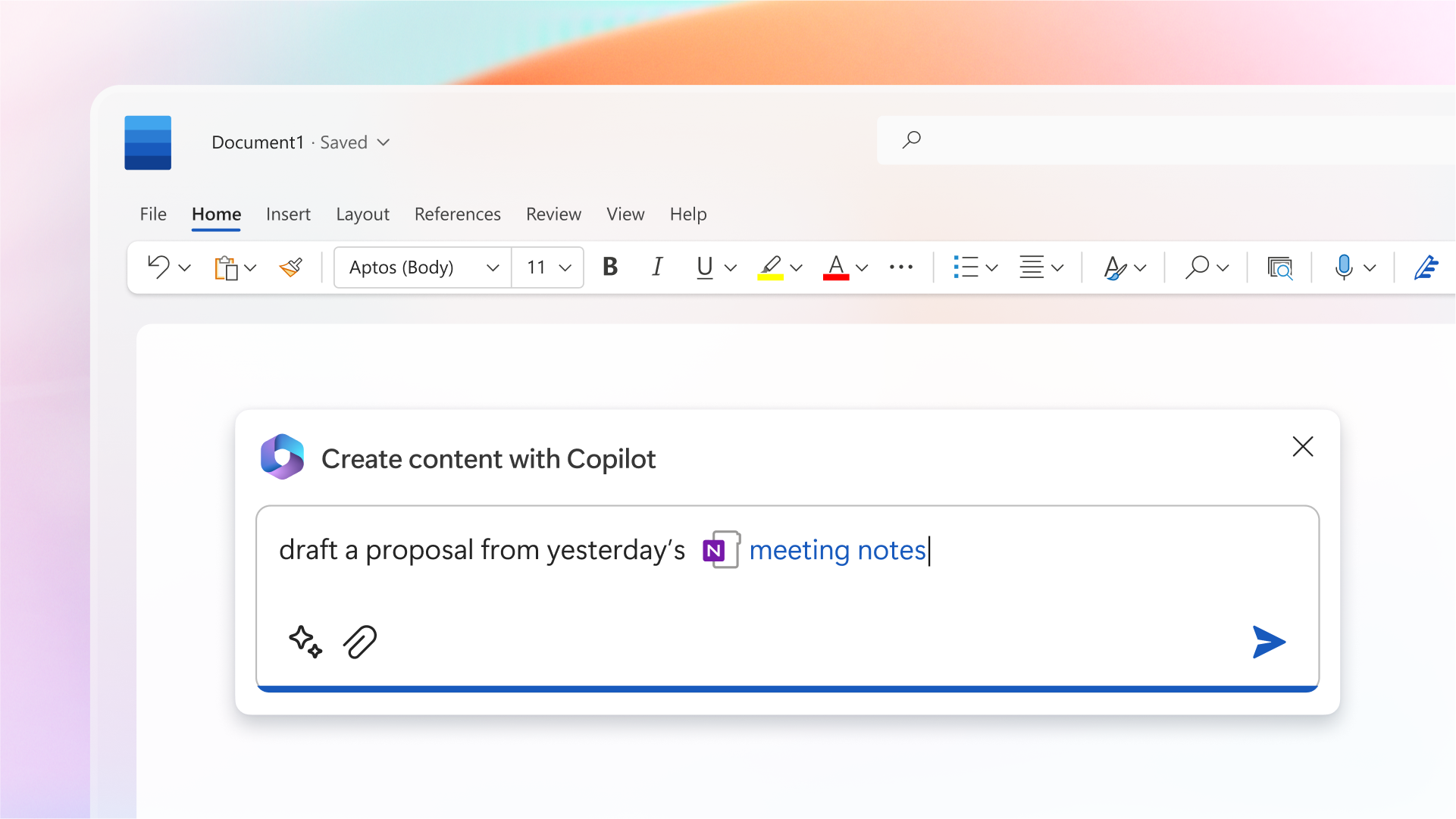
Copilot helps you write faster in Word. It suggests sentences and corrects grammar instantly. You can ask it to create drafts or improve your writing style. Copilot also summarizes long documents quickly. This saves time and improves your writing quality.
Enhancing Powerpoint Presentations
Copilot creates slides based on your ideas. It suggests layouts, designs, and content to match your topic. You can generate speaker notes and refine your presentation flow. Copilot helps make your slides clear and professional with minimal effort.
Managing Outlook With Copilot
Copilot organizes your emails and schedules in Outlook. It can draft replies and prioritize important messages. You get help managing your calendar and setting reminders. Copilot keeps your inbox tidy and your day planned well.
Summarizing Teams Conversations
Copilot listens to Teams meetings and chats. It creates summaries to highlight key points and decisions. This helps team members stay informed without reviewing long conversations. Copilot improves communication and saves time in meetings.
Boosting Productivity With Automation
Automation with Copilot AI saves time and effort in daily tasks. It handles repetitive work quickly. This allows you to focus on creative and important projects. Using automation tools boosts your overall productivity and reduces stress. Copilot AI offers smart features to automate various workflows. Here is how you can use it to improve your efficiency.
Automating Routine Tasks
Copilot AI can take over simple, repetitive jobs. Tasks like scheduling meetings, sending reminders, or answering common questions become automatic. This reduces manual work and prevents errors. You just set the rules once, and Copilot follows them. Automation frees you to do more valuable work without distractions.
Generating And Editing Ai Images
Creating visuals with Copilot AI is fast and easy. You describe the image you want, and it generates options. Editing images is simple with AI suggestions and adjustments. This saves time compared to manual design work. Even beginners can produce professional-looking images. Use this feature for presentations, social media, or marketing materials.
Finding And Organizing Files
Locating documents is faster using Copilot’s AI search. It understands natural language, so you just type what you need. Copilot sorts files by date, type, or project automatically. This keeps your workspace tidy and easy to navigate. Spending less time searching means more time for productive work.
Tips For Effective Copilot Use
Using Copilot AI effectively improves your work speed and quality. Clear communication helps Copilot understand your needs. Small changes in how you ask can give better answers. Adjusting Copilot’s output style makes the results fit your preferences. Follow these tips for better and smoother interactions with Copilot AI.
Providing Clear Instructions
Speak simply and clearly to Copilot. Use short sentences with direct commands. Avoid vague words or unclear requests. For example, say “Write a summary of this report” instead of “Tell me about this.” Clear instructions help Copilot give precise and useful responses. This saves time and reduces the need for corrections.
Adding Context For Better Responses
Give Copilot background information related to your task. Share details like purpose, audience, or style preferences. For example, mention if you want a formal or casual tone. Context guides Copilot to create answers that fit your needs. The more relevant details you provide, the more accurate the output will be.
Customizing Output Style
Tell Copilot how you want the output to look. Choose between formats like bullet points, paragraphs, or lists. Specify the tone—friendly, professional, or simple. You can also set length limits or key points to include. Customizing style ensures the results match your project or audience. It saves you from extra editing later.
Comparing Copilot Ai With Other Tools
Comparing Copilot AI with other AI tools helps you understand its unique features. Each AI assistant serves different purposes. Knowing their differences guides you to pick the best tool for your needs.
This section compares Copilot with ChatGPT, highlights strengths, and helps choose the right AI assistant.
Copilot Vs Chatgpt
Copilot AI is built to work inside Microsoft apps. ChatGPT works well for creative writing and complex questions.
ChatGPT can handle detailed explanations and creative content better. Copilot excels in business tasks like email drafts and meeting summaries.
ChatGPT offers free access with web browsing. Copilot focuses on real-time answers within Microsoft tools.
Choosing The Right Ai Assistant
Pick ChatGPT if you want creative ideas or detailed research. It fits well for storytelling and complex problem solving.
Choose Copilot if you use Microsoft Office daily. It saves time on writing documents, emails, and presentations.
Consider your work style and which tool fits your tasks best.
Strengths Of Copilot In Microsoft Ecosystem
Copilot integrates deeply with Word, Excel, PowerPoint, and Outlook. It helps create, edit, and summarize content quickly.
It understands your files and context, making suggestions that suit your work. Copilot can analyze data and generate charts in Excel.
This AI works well in Teams for summarizing meetings and managing tasks. Its connection to Microsoft apps boosts productivity.
Advanced Features And Customization
Copilot AI offers advanced features and customization to enhance your workflow. These tools let you tailor the AI to fit your unique needs and tasks. Customization helps make interactions smoother and more productive.
Explore building custom agents, using Copilot Studio, and applying machine learning for personalization. Each option adds depth to how you can use Copilot AI effectively.
Building Custom Copilot Agents
Create your own Copilot agents that focus on specific tasks. These agents can handle repetitive jobs or complex workflows automatically. You decide what each agent does and how it responds.
Custom agents improve efficiency by working exactly as you need. They save time and reduce errors in your daily work. Building agents requires no coding skills, just simple setup steps.
Using Copilot Studio
Copilot Studio is the platform for designing and managing your custom agents. It offers an easy interface to customize AI behavior. Adjust settings, create prompts, and test agents directly in the studio.
The studio helps you refine agents to better match your work style. You can update agents anytime to keep them aligned with new tasks. It’s a powerful tool to make AI fit your needs.
Leveraging Machine Learning For Personalization
Copilot AI learns from your usage patterns to personalize responses. It adapts over time to understand your preferences and work habits. This makes interactions faster and more relevant.
Machine learning enhances accuracy and context in suggestions. The AI remembers your style, preferred formats, and common tasks. Personalization turns Copilot into a helpful assistant tailored just for you.
Access And Pricing Options
Understanding access and pricing options helps you choose the best way to use Copilot AI. Copilot offers various plans to suit different needs and budgets. You can start with free access or select a subscription for more features. Knowing these options ensures you get the most from Copilot.
Free Access To Copilot
Copilot AI provides free access through its web platform. Visit copilot.microsoft.com to start using it without cost. The free version includes basic AI chat and image generation. This option is ideal for casual users or beginners. It allows you to explore core features before upgrading.
Available Subscription Plans
Subscription plans offer enhanced features and higher usage limits. Plans vary by price and benefits, catering to personal and professional users. Monthly and yearly billing options are available. Higher-tier plans include advanced AI tools and faster response times. Choose a plan that matches your workload and needs.
Maximizing Value From Your Plan
Use all features included in your chosen plan. Regularly check for updates and new tools added to Copilot. Combine Copilot with other Microsoft apps for better productivity. Monitor your usage to avoid extra charges or limits. Adjust your plan if your needs change over time.
Frequently Asked Questions
Can I Use Copilot Ai For Free?
You can use Microsoft Copilot AI for free by visiting copilot. microsoft. com. It offers AI chat, image generation, and editing features without cost.
Is Copilot As Good As Chatgpt?
Copilot excels within Microsoft tools, while ChatGPT offers broader creativity and versatile AI tasks. Choose based on your needs.
How Does An Ai Copilot Work?
An AI Copilot works by using machine learning to understand tasks, provide real-time suggestions, and automate workflows efficiently.
What’s The Best Way To Use Copilot?
Use Copilot by integrating it into Microsoft apps for real-time assistance, drafting, summarizing, and managing tasks efficiently.
Conclusion
Using Copilot AI can simplify daily tasks and boost productivity. It helps draft documents, summarize chats, and find information quickly. Exploring its features lets you work smarter, not harder. Start small and learn as you go to get comfortable. Copilot fits well with Microsoft tools you already use.
Try it regularly to see how it improves your workflow. This AI assistant supports better focus and faster results. Give Copilot AI a chance to enhance your digital experience.